Showing posts with label Tweaks. Show all posts

Saturday, 17 October 2015

        Aqua Snap Window Manager
Are you tired of shuffling back and forth between windows?  Here’s a handy app that can help you keep all of your windows organized and accessible.
AquaSnap is a great free utility that helps you use multiple windows at the same time easily and efficiently.  One of Windows 7’s greatest new features is Aero Snap, which lets you easily view windows side by side by simply dragging windows to side of your screen.  After using Windows 7 for the past year, Aero Snap is one of the features we really miss when using older versions of Windows.
With AquaSnap, you now have all of the features of Aero Snap and more in Windows 2000, XP, Vista, and of course Windows 7.  Not only does it give you Aero Snap features, but AquaSnap also gives you more control over your windows to make you more productive.
AquaSnap is a a free download for Windows 2000, XP, Vista, and 7.  Download the small installer (link below) and install it with the default settings.
sshot-56
AquaSnap automatically runs as soon as it is installed, and you will notice a new icon in your system tray.
image
Now you can go ahead and put it to use.  Drag a window to any edge or corner of your desktop, and you will see an icon showing what part of the screen the window will cover.
image
Dragging it to the side of the screen expanded the window to fill the right half of the screen, just like the default Aero Snap in Windows 7.  You can drag the window away to restore it to its former size.
image
AquaSnap works on any corner of the screen too, so you can have 4 windows side-by-side.  We already have 3 windows snapped to the corners, and notice that we’re dragging a fourth window to the bottom right corner.
image
You can also snap windows to the bottom and top of the screen.  Here we have Word snapped to the bottom half of the screen, and we’re dragging Chrome to the top.
image
You can even snap internal windows in Multiple Document Interface (MDI) programs such as Excel.  Here we are snapping a workbook in Excel to the left to view 2 workbooks side-by-side.
 image
Additionally, AquaSnap lets you keep any window always on top.  Simply shake any window, and it will turn semi-transparent and stay on top of all other windows.  Notice the transparent calculator here on top of Excel.
image
All of AquaSnap’s features work great in Windows 2000, XP, and Vista too.  Here we are snapping IE6 to the left of the screen in XP.
sshot-62
Here are 3 windows snapped to the sides in XP.  You can mix the snap modes, and have, for instance, two windows on the right side and one window on the left.  This is a great way to maximize productivity if you need more space in one of the windows.
sshot-60
Even AquaShake works to keep a window transparent and on top in XP.
sshot-61
Settings
AquaSnap has a detailed settings dialog where you can tweak it to work exactly like you want.  Simply right-click on its icon in the taskbar, and select Settings.
image
From the first screen, you can choose if you want AquaSnap to start with Windows, and if you want it to show an icon in the system tray.  If you turn off the system tray icon, you can access the AquaSnap settings from Start > All Programs > AquaSnap > Configuration (or simply search for Configuration in Vista or Windows 7).
image
The second tab in settings lets you choose what you want each snapping region to do.  You can also choose two other presets, including AeroSnap (which works just like the default Aero Snap in Windows 7) and AquaSnap simple (which only snaps at the edges of the screen, not the corners).
image
The third tab lets you increase or decrease the opacity of pinned windows when using AquaShake, and also lets you increase or decrease the shaking sensitivity.  Additionally, if you prefer the standard AeroShake functionality, which minimizes all other open windows when you shake a window, you can choose that too.
image
The fourth tab lets you activate an optional feature, AquaGlass.  If you activate this, it will make windows turn transparent when you drag them across the screen.
image 
Finally, the last tab lets you change the color and opacity of the preview rectangle, or simply turn it off.
image
Or, if you want to temporarily turn AquaSnap off, simply right-click on its icon and select Off.  In Windows 7, turning off AquaSnap will restore your standard Windows Aero Snap functionality, and in other version of Windows it will stop letting you snap windows at all.  You can then repeat the steps and select On when you want to use AquaSnap again.
image
Conclusion
AquaSnap is a handy tool to make you more productive at your computer.  With a wide variety of useful features, there’s something here for everyone. 
Download Link :- Official Site

Friday, 28 August 2015

.Net Framework 3.5

            .NET Framework 3.5 in Windows 10 


Windows 10 comes with .NET framework 4.6 pre-installed, but many apps developed in Vista and Windows 7 era require the .NET framework v3.5 installed along with 4.5. These apps will not run unless you will install the required version. When you try to run any such app, Windows 10 will prompt you to download and install .NET framework 3.5 from the Internet. However, this will take a lot of time. You can save your time and install .NET Framework 3.5 from the Windows 10 installation media. This method is much faster and does not even require an Internet connection. Here is how to install it.

Just Download and run the given batch file , with the windows DVD inserted on ur pc ... It's simple as that....
Download batch file.... Download Link.

Source :- winaero.com

Saturday, 22 August 2015

          Smart Windows App Blocker v2.0


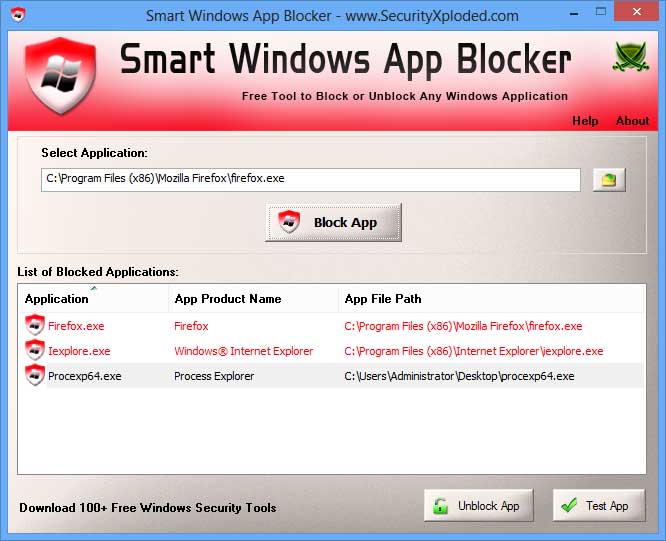
Smart Windows App Blocker is the Free Tool to quickly Block or Unblock any Windows Application with just a click.
It is ideal tool for administrators to block access to privileged or sensitive applications. Also parents can use it to prevent their kids from running certain programs.

Anytime, it displays detailed list of all the Blocked Applications. You can select any of the Blocked app andunblock it instantly.

Once you block or Unblock the application, it is effective immediately. There is no need to log-off or restartthe system.

One of the unique feature of this tool is that it allows you to TEST the blocked app for quick verification to see if if it is really disabled or not.

It is fully portable and can be run directly without JAVA, .NET or any other components. It works on both 32-bit & 64-bit systems starting from Windows XP to Windows 8.


Features & Benefits
  • Instantly Block or Unblock any Windows Application/Process/Program
  • No need to log-off or restart the system
  • Displays list of all the Blocked applications
  • Test the Blocked Application for quick verification
  • Useful for Administrators and Parents
  • Supports quick Drag & Drop of Application
  • Free and Very Easy to Use Tool
  • Fully Portable, does not require Java or .NET
  • Includes Installer for local Installation & Uninstallation. 
 
 
Installation & Uninstallation
Smart Windows App Blocker comes with Installer to make it easier to install it locally on your system for regular usage. This installer has intuitive wizard which guides you through series of steps in completion of installation.
 
At any point of time, you can uninstall the product using the Uninstaller located at following location (by default)
 
[Windows 32 bit]
C:\Program Files\SecurityXploded\SmartWindowsAppBlocker

[Windows 64 bit]
C:\Program Files (x86)\SecurityXploded\SmartWindowsAppBlocker


How to Use?
Smart Windows App Blocker is easy to use with its simple GUI interface.

Here are the brief usage details
  • Launch SmartWindowsAppBlocker on your system as Administrator
  • Just 'Drag & Drop' your Application EXE file or click on Browse button
  • After selecting the app, just click on 'Block App' to quickly Block it. On success, it will be added to list of Blocked Applications.
  • Now you can select the app and click on 'Test App' to quickly verify it.
  • Anytime you can select the App from the displayed list and unblock it by clicking on 'Unblock App' button.


Screenshots
Screenshot 1: Smart Windows App Blocker showing all the Blocked Apps on Windows 8.
 
SmartWindowsAppBlocker showing recovered passwords 


Release History
Version 2.0 :  8th Jan 2015
Integrated Uninstaller into Windows Add/Remove Programs, now you can uninstall it in a standard way.
 
Version 1.5 :  13th Nov 2013
Right click list menu to quickly copy the Application File Path
 
Version 1.0 :  4th Sep 2013
First public release of SmartWindowsAppBlocker


Download LINK :- Softpedia Link


Friday, 22 May 2015

           Context Menu Tuner

Context Menu Tuner is an application which allows you to customize Explorer's context menu in Windows 7, 8 and 8.1. Along with fully customizable commands, it allows you to add any ribbon command to the Explorer context menu.
:- http://winaero.com/request.php?62


        How to disable ads in Skype’s chat window


Previously, we covered a trick which gets rid of Skype ads by modifying the language file. Unfortunately, this method stopped working in newer versions of Skype. Another annoyance in newer versions of Skype is that banner ads are shown right in the chat window. Today, we would like to share another simple method to disable ads in Skype's chat window which works regardless of the version of Windows you have.
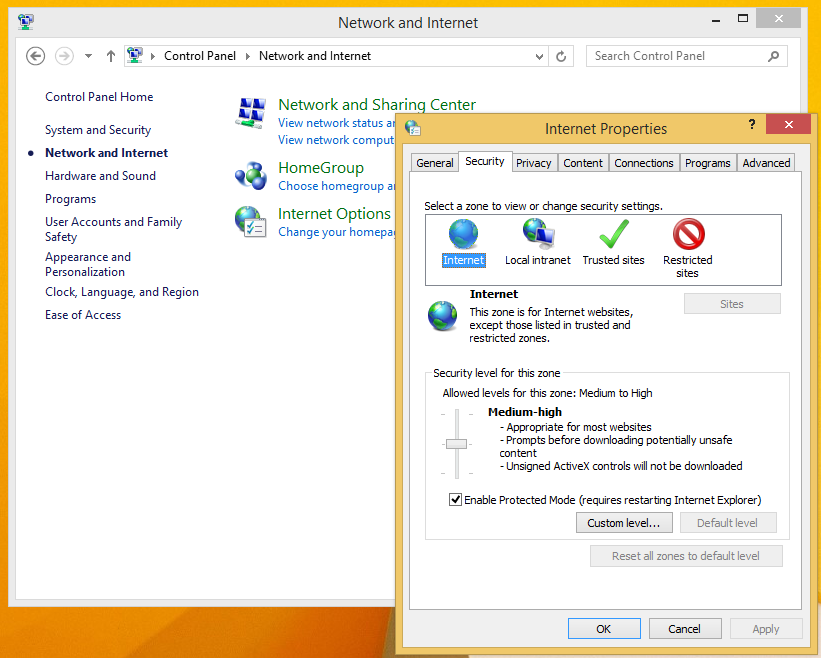
  1. Go to the Control Panel (see all the ways to open Control Panel)
  2. Locate and open the Control Panel\Network and Internet\Internet Options item.
    Internet Options
  3. Switch to the Security tab.
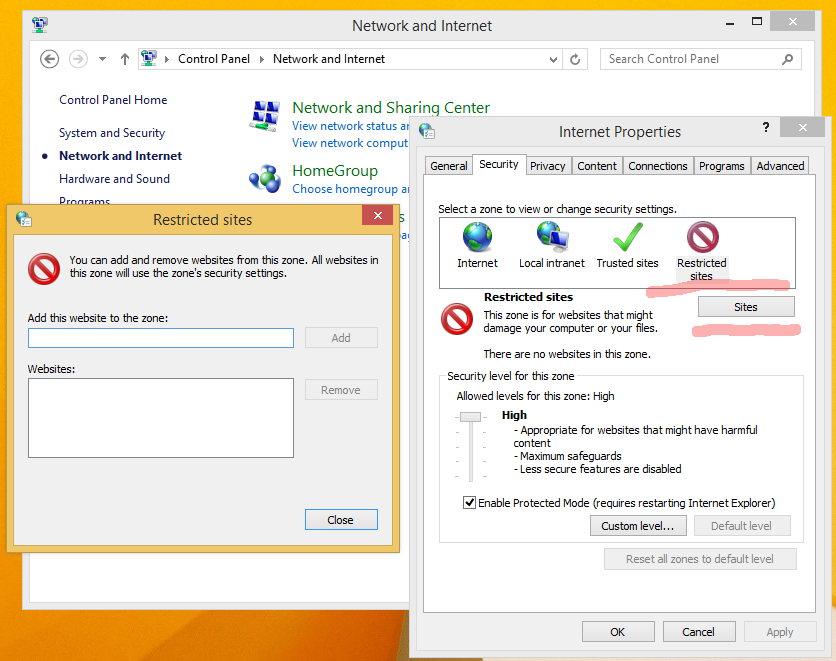
  4. Click on 'Restricted sites' icon and click the Sites button:
    Security tabThe 'Restricted sites' dialog will appear on the screen.
  5. Type the following in the text box and then press the Add button:
    https://apps.skype.com/
  6. Close Internet Options and restart Skype.
That's it! Enjoy ad-free chat in Skype.
Many thanks to our friend Chris for sharing this tip.
The alternative way is as follows:
  1. Run an elevated instance of the command prompt.
  2. Type the following:
    notepad c:\windows\system32\drivers\etc\hosts
  3. Paste the following text in the end of the file:
    127.0.0.1 live.rads.msn.com
    127.0.0.1 ads1.msn.com
    127.0.0.1 static.2mdn.net
    127.0.0.1 g.msn.com
    127.0.0.1 a.ads2.msads.net
    127.0.0.1 b.ads2.msads.net
    127.0.0.1 ad.doubleclick.net
    127.0.0.1 ac3.msn.com
    127.0.0.1 rad.msn.com
    127.0.0.1 msntest.serving-sys.com
    127.0.0.1 bs.serving-sys.com
    127.0.0.1 flex.msn.com
    127.0.0.1 ec.atdmt.com
    127.0.0.1 cdn.atdmt.com
    127.0.0.1 db3aqu.atdmt.com
    127.0.0.1 cds26.ams9.msecn.net
    127.0.0.1 sO.2mdn.net
    127.0.0.1 aka-cdn-ns.adtech.de
    127.0.0.1 secure.flashtalking.com
    127.0.0.1 adnexus.net
    127.0.0.1 adnxs.com
    127.0.0.1 *.rad.msn.com
    127.0.0.1 *.msads.net
    127.0.0.1 *.msecn.net
This will disable ads in Skype and all other Microsoft ads in other software like Office Starter.
Source:-  www.winaero.com